
Restore from a Point-in-Time Backup
How to restore your workspace from a previous snapshot in Molten.Bot.
If you need to recover your workspace to an earlier state, you can restore from a point-in-time snapshot directly in Molten.Bot.
Important: Your assistant will restart as part of the restore process.
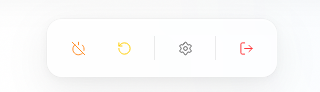
Step 1: Open Settings from the Bottom Dock
From the dock at the bottom of the page, select the Settings icon.
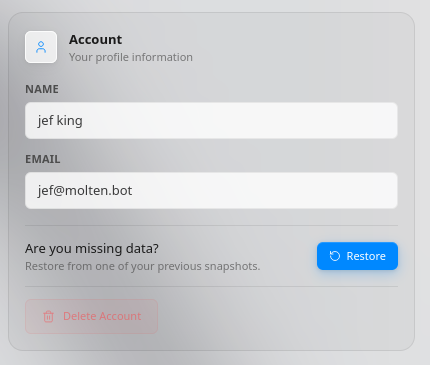
Step 2: Open Restore from Account
In the Account section, click Restore next to “Are you missing data?”.
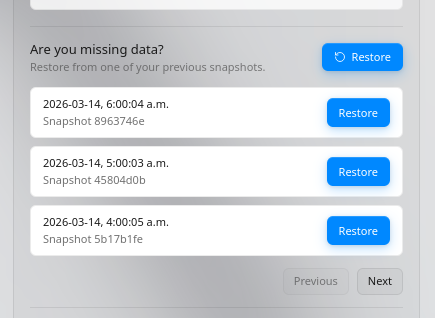
Step 3: Choose the Snapshot Time
Select the snapshot that matches the point in time you want to return to, then click Restore for that entry.
Step 4: Confirm Restore
In the confirmation modal, click Restore Now to begin.
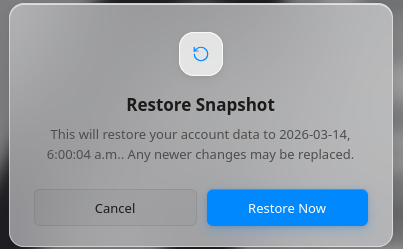
During restore, your assistant will restart. Wait for it to come back online before continuing your work.
After restart, your workspace state will reflect the selected snapshot time.