
LLM Provider Settings: The Brain of Your Agent
How to configure Direct providers and OpenRouter in Molten.Bot, with links for generating API keys.
Your LLM provider settings are the brain of your Agent. This is where you decide which model thinks, plans, and responds across your workflows.
In Settings → Provider Settings, you can choose between two setup modes:
- Direct: Connect straight to a provider like Anthropic, OpenAI, xAI, Mistral, or Google Gemini with your own API key.
- OpenRouter: Use one OpenRouter key to access many providers through a single endpoint.
How to Find Settings
If you are new MoltenBot, first read Using the Bottom Dock to quickly locate the Settings icon.
Direct Integration Setup
Use Direct when you want first-party provider billing, account controls, and direct model access.
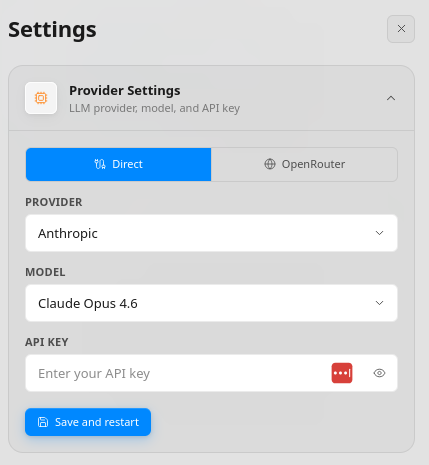
Direct Provider Console Links
Open the matching console, create an API key, then paste it into API Key in the app.
 Anthropic: console.anthropic.com/settings/keys
 OpenAI: platform.openai.com/api-keys
 xAI: console.x.ai/team/default/api-keys
 Mistral: console.mistral.ai/api-keys
 Google Gemini: aistudio.google.com/app/apikey
Direct Setup Steps
- Open Settings → Provider Settings.
- Select Direct.
- Choose your provider from the Provider dropdown.
- Choose the model you want from Model.
- Generate a key from the provider console link above and paste it into API Key.
- Click Save and restart.
What Is OpenRouter?
OpenRouter is a unified LLM gateway. Instead of managing separate provider integrations, you use one API key and one API shape to access many models across multiple providers.
This is useful when you want to:
- Switch models quickly without reconfiguring your app integration
- Test and compare providers from one place
- Centralize usage and billing in one account
OpenRouter Setup
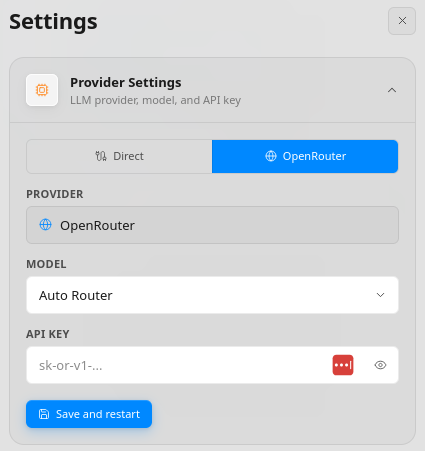
OpenRouter Links
- OpenRouter site: openrouter.ai
- Create API key: openrouter.ai/settings/keys
- Docs quickstart: openrouter.ai/docs/quickstart
OpenRouter Steps
- Open OpenRouter Keys and create a key (typically starts with
sk-or-v1-). - In the app, open Settings → Provider Settings.
- Select OpenRouter.
- Keep Model on Auto Router (or choose a specific model if needed).
- Paste your OpenRouter key into API Key.
- Click Save and restart.
Recommended Operating Pattern
- Start with OpenRouter + Auto Router for faster setup and model flexibility.
- Switch to Direct for a specific provider when you need first-party account controls or strict provider routing.
- Rotate keys immediately if you suspect exposure.
Tip: Never paste API keys into prompts, chat messages, or git-tracked files. Keep them only in your secure settings/secrets flow.