
Adding Telegram to Your OpenClaw Agent
Connect your OpenClaw agent to Telegram for instant messaging, notifications, and voice interactions.
Telegram is one of the easiest ways to message your OpenClaw agent from your phone or desktop. This guide follows the exact setup flow in Molten.Bot.
Before You Start
- A running OpenClaw workspace in Molten.Bot
- A Telegram account
- About 3 minutes to complete setup
Step 1: Open Settings
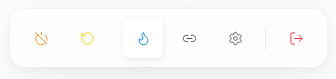
In your workspace, use the bottom dock and click the Settings icon.
Step 2: Open Channel Management
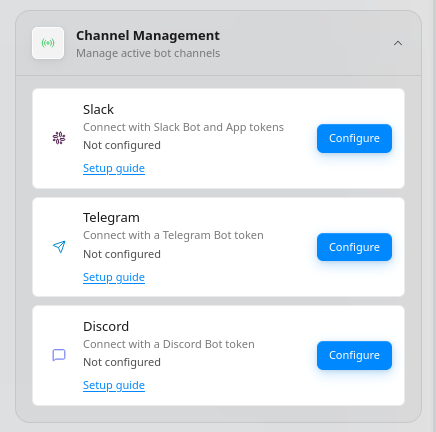
In Settings, open Channel Management, then find Telegram and click Configure.
Step 3: Configure Telegram
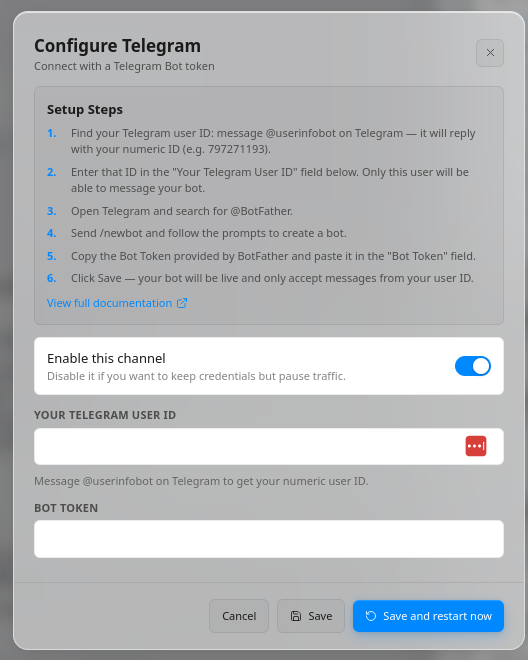
In the Telegram configuration dialog, complete the setup steps shown in the UI:
- Message
@userinfobotin Telegram and copy your numeric user ID. - Paste that value into Your Telegram User ID.
- Open
@BotFather, run/newbot, and create your bot. - Copy the bot token from BotFather and paste it into Bot Token.
- Keep Enable this channel turned on.
- Click Save and restart now.
Test Your Bot
- Open your bot in Telegram.
- Send
/start(or tap Start). - Send a normal message like What is on my calendar today?
- Confirm your OpenClaw agent responds.
Troubleshooting
- No response: Re-check your Telegram User ID and Bot Token for typos.
- Still disconnected: Make sure Enable this channel is on, then click Save and restart now again.
- Wrong bot: Confirm you copied the token from the same bot you opened in Telegram.
Need help? Check the OpenClaw documentation or join the community Discord.